
How to Fix “Home is Currently Unavailable” on FireStick

This guide explains how to fix the “Home is Currently Unavailable” error on FireStick. The solutions work on any Fire OS device—including 2nd Gen FireStick 4K Max, FireStick 4K, FireStick Lite, older FireSticks, and TVs with built-in Fire TV.
The FireStick is an innovative device that gives you access to popular streaming services and thousands of movies, TV shows, sports events, documentaries, and more. However, sometimes you might see an error message like: “Home is currently unavailable. A network error has occurred. To check the connection on your Fire TV, go to Settings > Network and follow the instructions. If the problem persists, please get in touch with Amazon Customer Service.” When this happens, your content becomes unavailable and you may feel forced to contact customer support.
It’s frustrating to encounter this error. The problem usually happens because of a bug that makes the FireStick malfunction—just like other streaming devices such as Roku and Apple TV, the FireStick isn’t completely free of bugs.
In this guide, we examine the reasons behind the issue and explore various ways to fix it. Be sure to read through the entire guide so you don’t miss the solution that could work for you.
What Causes the “Home is Currently Unavailable” Error on FireStick?
Your Fire TV Stick might show the “Home is currently unavailable” error for several reasons. These include:
- Internet Connection: The FireStick requires a steady network connection. A weak or slow Wi-Fi signal, or software bugs that disrupt connectivity, can trigger this error.
- Registration Problems: Proper registration is essential for receiving updates and accessing all features. If your FireStick isn’t registered correctly, apps might stop working and you may see this error.
- Outdated Software: Amazon regularly releases updates that fix bugs and improve performance. If your device isn’t updated, it may cause this error.
- Too Many Apps: With only 8 GB of storage, installing too many apps can overload your FireStick and lead to performance issues.
- HDMI Port Issues: A faulty HDMI port on your TV can also cause the error by interfering with the device’s connection.
How to Fix “Home is Currently Unavailable” on FireStick
Before trying more complex fixes, try this simple solution first: Unplug your Amazon FireStick, wait for about a minute, and plug it back in. You might be surprised how many issues this simple step can resolve!
If the problem persists, try the methods below.
Change the HDMI Port
If your FireStick is connected to a faulty HDMI port, switching to a different, working port may fix the error.
Check Your Network Connection Settings
Since the error might be due to a weak internet connection, make sure your FireStick is still connected to the internet. Review your network settings and adjust them if needed. If your network settings are correct, proceed to the next solution.
Soft Reset Your FireStick
Resetting your FireStick clears its cache and reboots its RAM. To do this:
Press the Play/Pause button and the Select button (located in the center of the directional ring) on your remote simultaneously. Hold them for several seconds and then release. This will restart your FireStick.
Restart Your Internet Router
Sometimes, the issue may be with your internet connection. Restarting your router can help by clearing its memory and refreshing its connection. Follow these steps:
- Unplug your router and modem from the power outlet. If there are any network switches between them, unplug those too. Wait a few minutes for the equipment’s memory to clear.
- If your router and modem are separate, plug the modem back in first and wait a few seconds.
- Wait about a minute for your ISP to reassign an IP address.
- Plug your router back in and power it on if needed. Wait a couple of minutes for it to fully boot up.
- After the devices have restarted, check if the error is resolved.
Re-Register Your FireStick
If your FireStick is not properly registered, deregistering and then re-registering it can refresh your device settings and resolve the error. To re-register:
- From the home screen, select Settings.
- Select My Account or Account & Profile Settings (the option may vary based on your FireStick model).
- Choose Amazon Account (this should display your name as a subtitle).
- Click Deregister and confirm when prompted.
- Unplug your FireStick for about 30 seconds, then plug it back in. Follow the on-screen prompts to register your device again.
Update Your FireStick OS
Keeping your FireStick’s software up to date ensures you benefit from the latest bug fixes and improvements. To update:
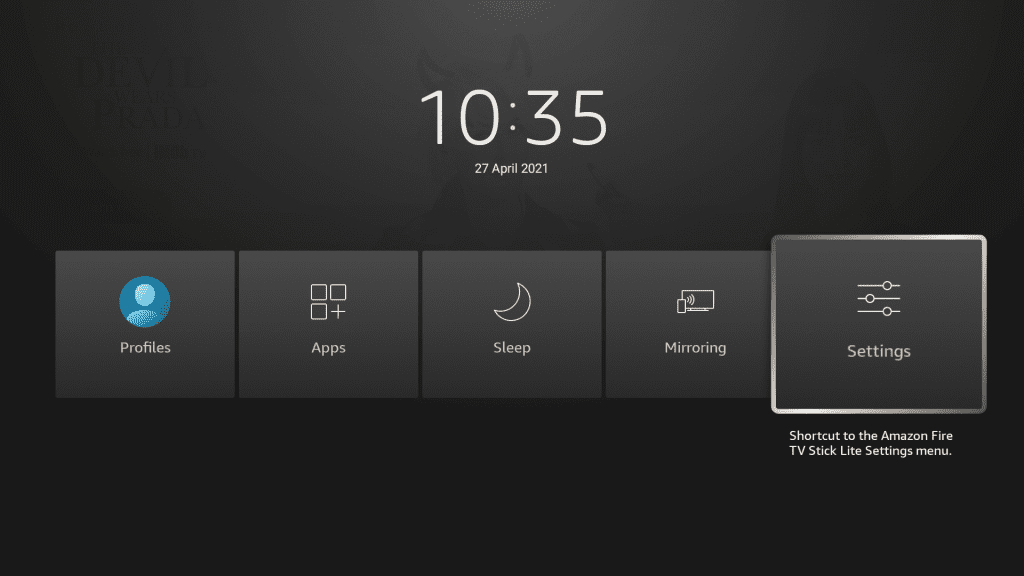
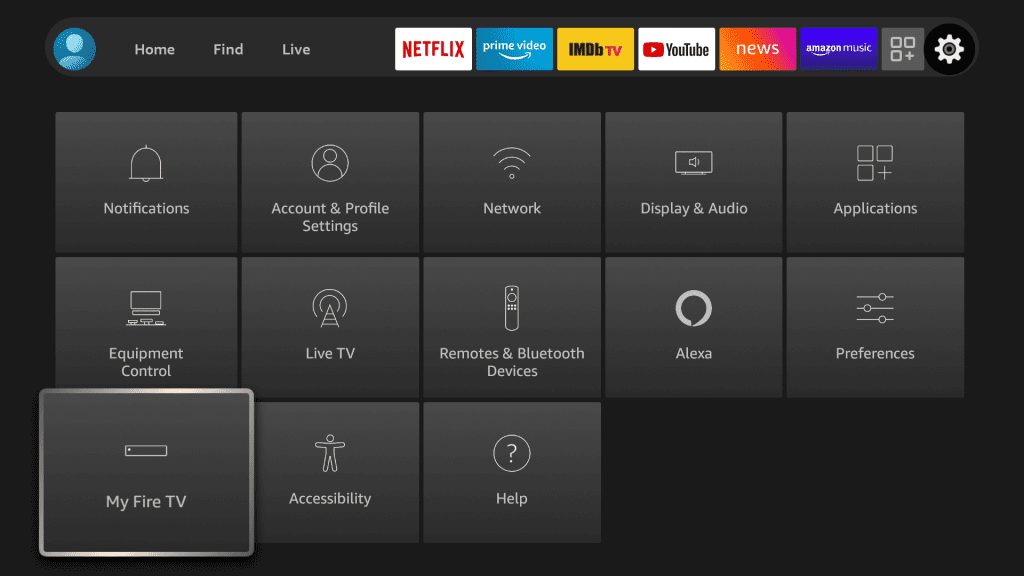
- Press and hold the Home button on your remote for a few seconds to open Settings.
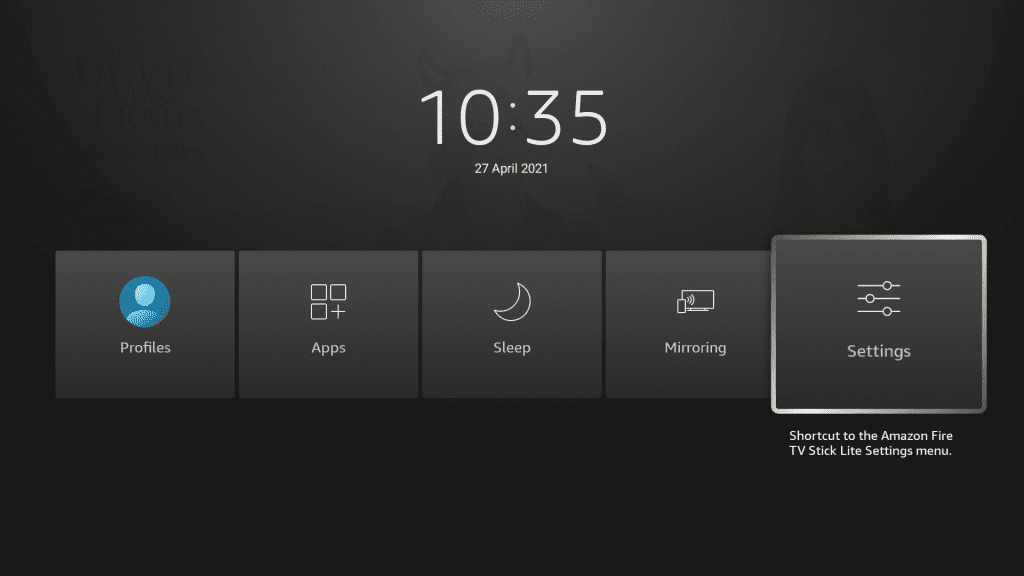

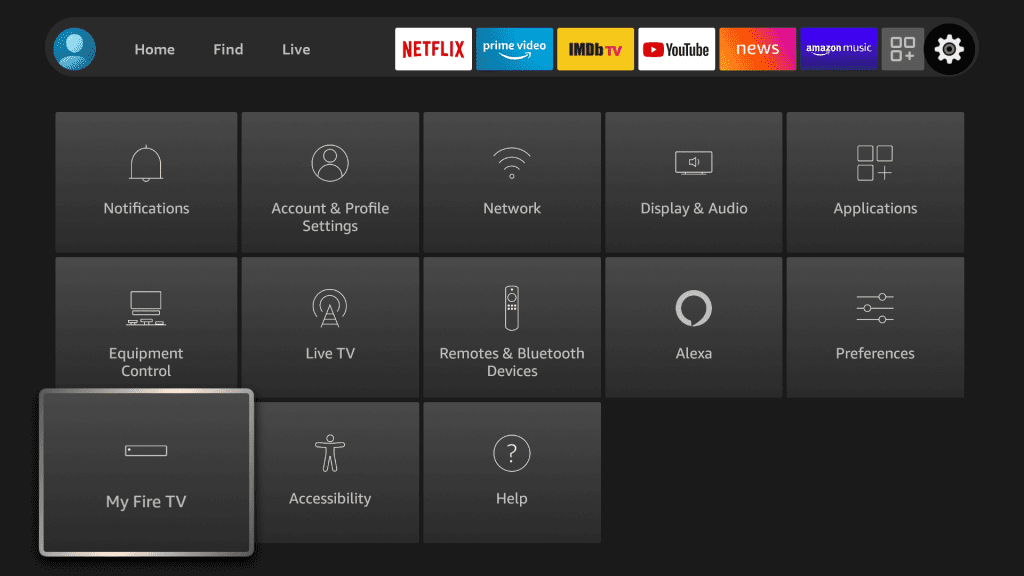
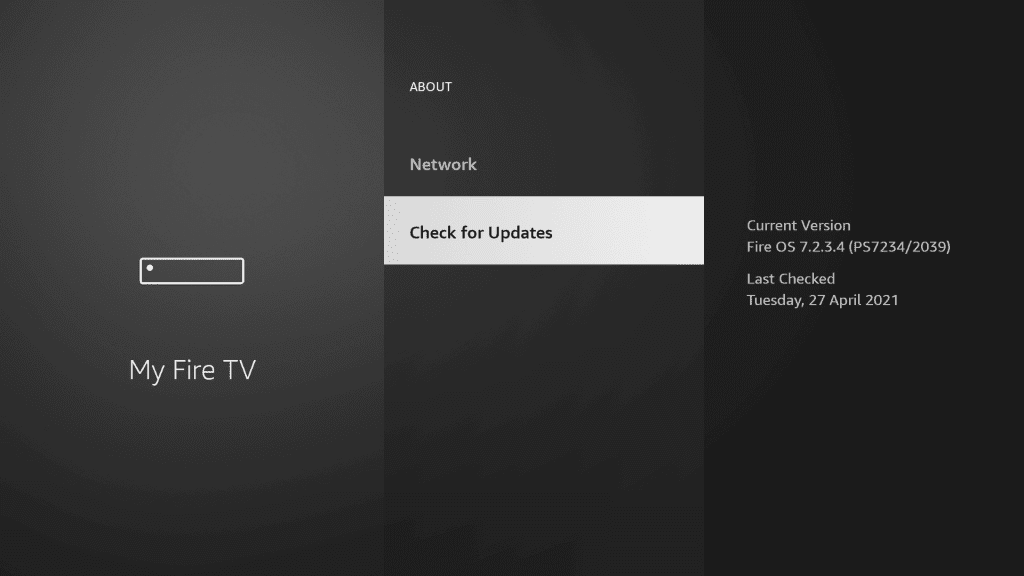
- Select Device, System, or My Fire TV (depending on your OS version).
- Select Check for System Update or Check for Updates to search for available updates.
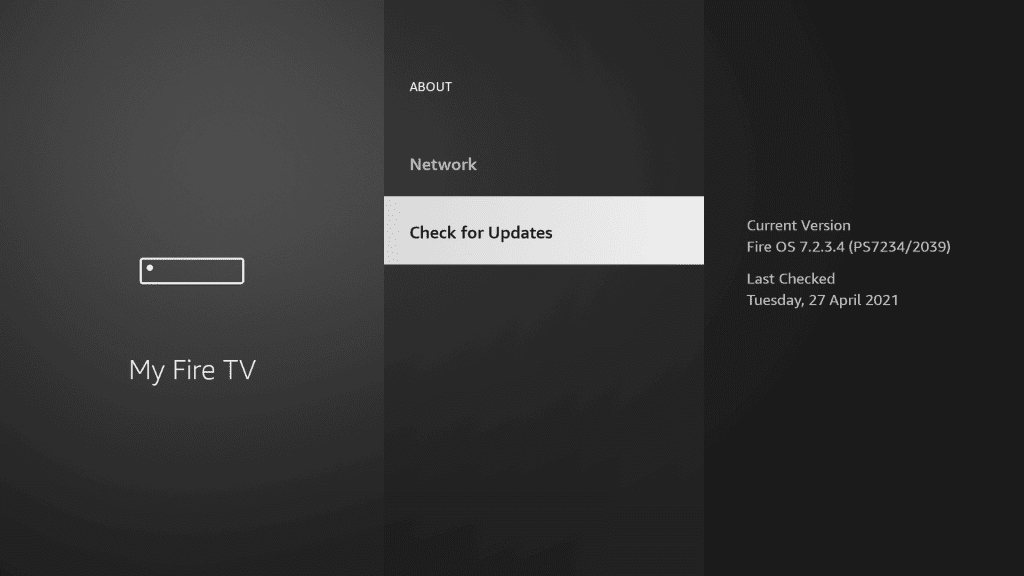
- If an update is available, download and install it.
Factory Reset
If you’ve tried all previous steps and still get the “Home is currently unavailable” error, consider a factory reset. This will erase all your apps, media, account settings, and preferences, so use it as a last resort.
A factory reset typically takes about five minutes (though it may take longer depending on your device). To perform a reset:
- Press and hold the Home button on your remote for a few seconds to open Settings.
- Select My Fire TV from the Settings menu.
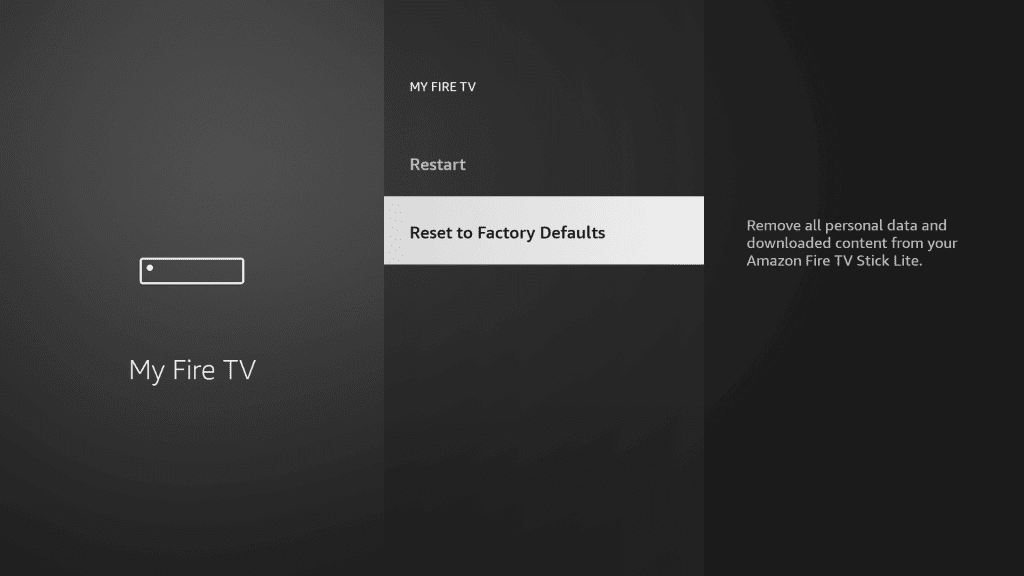
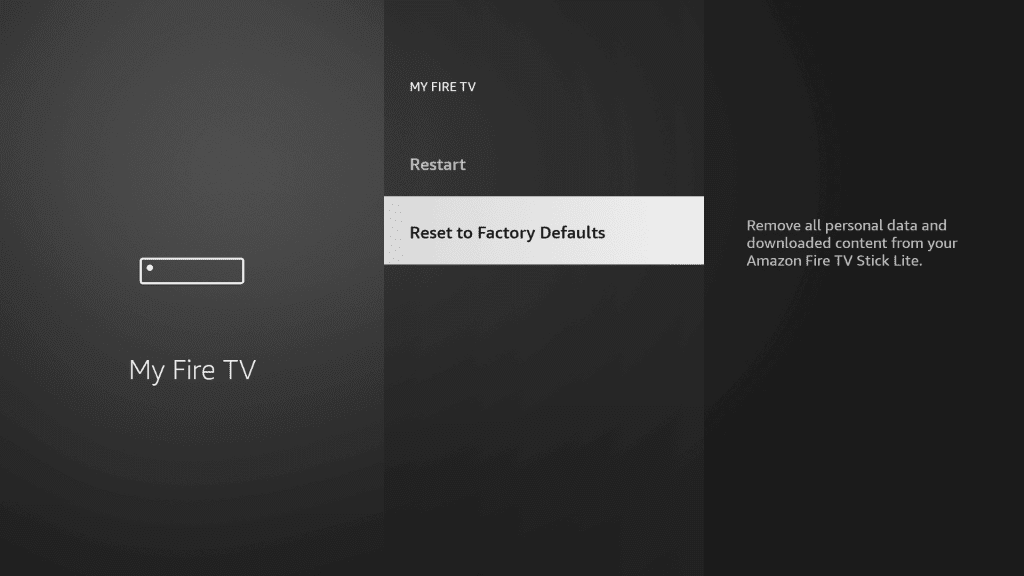
- Scroll down and select Reset to Factory Defaults and then click Reset to confirm.
- After the reset, set up your FireStick from scratch by entering your Amazon account details, Wi-Fi information, and reinstalling your apps.
Contact the Amazon Customer Service
If none of the above steps work—even after trying different Wi-Fi networks—you should contact Amazon Customer Service for further assistance. Log in to your Amazon account and visit the Customer Support Center to submit details about your issue.
Summary
The Amazon FireStick is a powerful streaming device, but like any technology, it can encounter errors such as “Home is currently unavailable.” This guide has detailed several common causes—including connectivity issues, registration problems, outdated software, too many apps, and HDMI port issues—and provided 8 effective methods to fix the problem. By following these steps, you should be able to resolve the error and enjoy a seamless streaming experience.
Read our full disclaimer here.