
How to Fix Disney Plus Not Working on FireStick in Minutes

Today I will show you how to fix Disney Plus not working on FireStick. I have outlined 8 simple and effective steps to get your Disney+ running quickly. I will also explain some common reasons why your Disney Plus crashes or freezes. This method works with Fire TV devices such as FireStick 4K, FireStick Lite, New FireStick 4K, New FireStick 4K Max, and Fire Cube TV.
Does your Disney+ app crash when you open it? Is it freezing during streaming? Have you tried many fixes and are now considering uninstalling the app entirely? In this article, I will share 8 underrated yet super-effective solutions to fix Disney+.
Before diving into these easy-to-use and quick solutions, let’s first look at some common reasons why Disney Plus might not be working on your FireStick so you can choose the right fix.
Three Primary Reasons Why Disney Plus Is Not Working on Your FireStick
While there can be many issues, here are the 3 most common causes:
1) Compatibility Issues
Often, older FireStick models are incompatible with the newer version of Disney Plus. This incompatibility is the most common reason why Disney+ fails to start on your FireStick. It also helps to remember that if the app’s name is written repeatedly as “Disney+”, the “P” in Plus must be uppercase.
- Ensure you have the proper services required to run the application.
2) Service Breaks
Streaming services often schedule maintenance breaks. It’s possible that Disney+ is down due to a maintenance schedule.
3) Incorrect Login Credentials
Sometimes, Disney Plus fails to connect because you are using incorrect login details.
These are the most common reasons why Disney+ may not work on your FireStick. Below are the 8 methods to fix the problem – make sure you follow them all.
8 Super Effective Methods to Fix Disney Plus on FireStick
Read and follow every step carefully to resolve your issue within minutes.
1) Log Out of Disney+ and Log In Again
Disney+ may stop working if you use incorrect login credentials, which breaks the connection with its server. To fix this, log out and then log back in. Follow these steps:
- Open your Disney+ app.
- Go to the settings section.
- Select the log-out option and click it.
- You will be logged out of Disney+.
- Relaunch the app, enter your credentials correctly, and tap the login button.
This should restore a seamless connection with the Disney+ server. If the issue continues, another fix might be needed.
2) Restart Your FireStick
A quick reboot can often clear temporary glitches. This simple step might be all you need to get Disney+ working again.
1. Go to Settings.
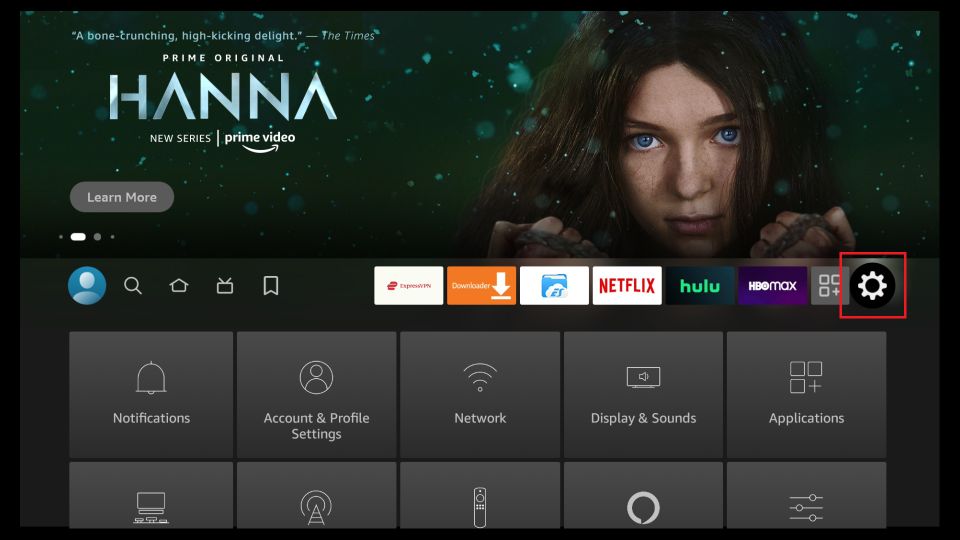
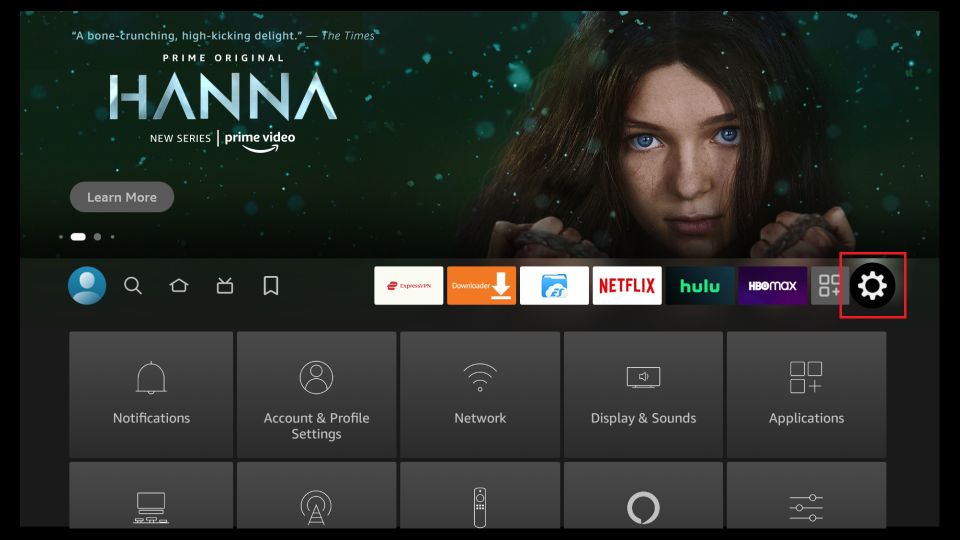
2. Find and select My Fire TV.
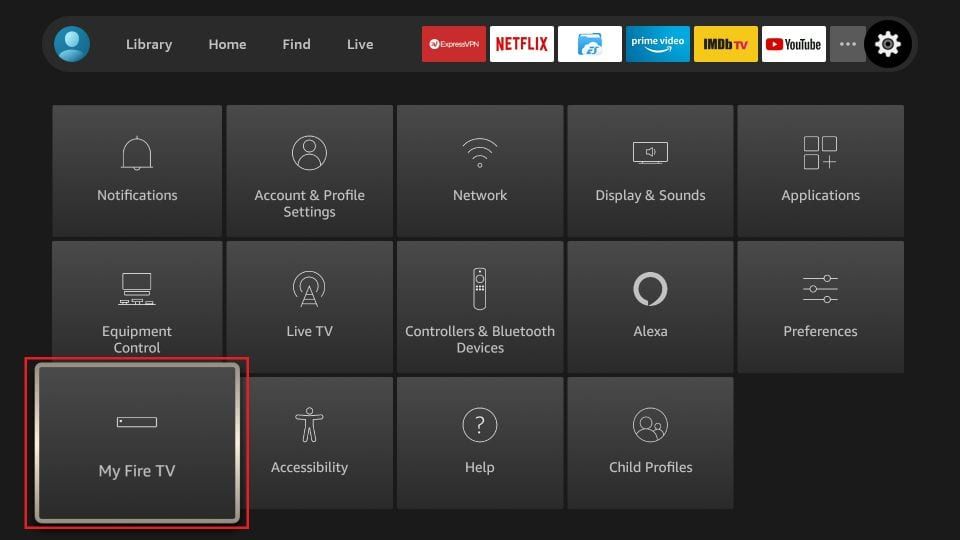
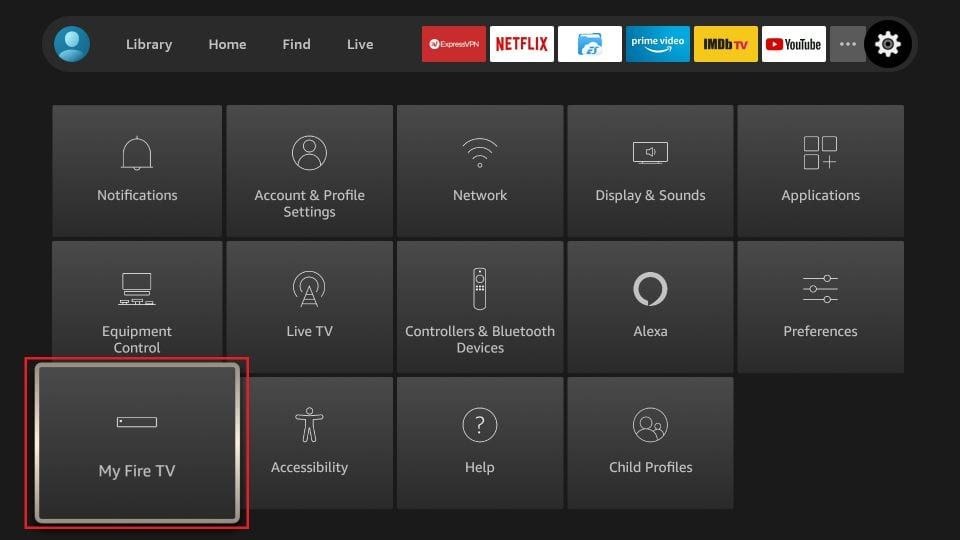
3. Locate the Restart option and press it.
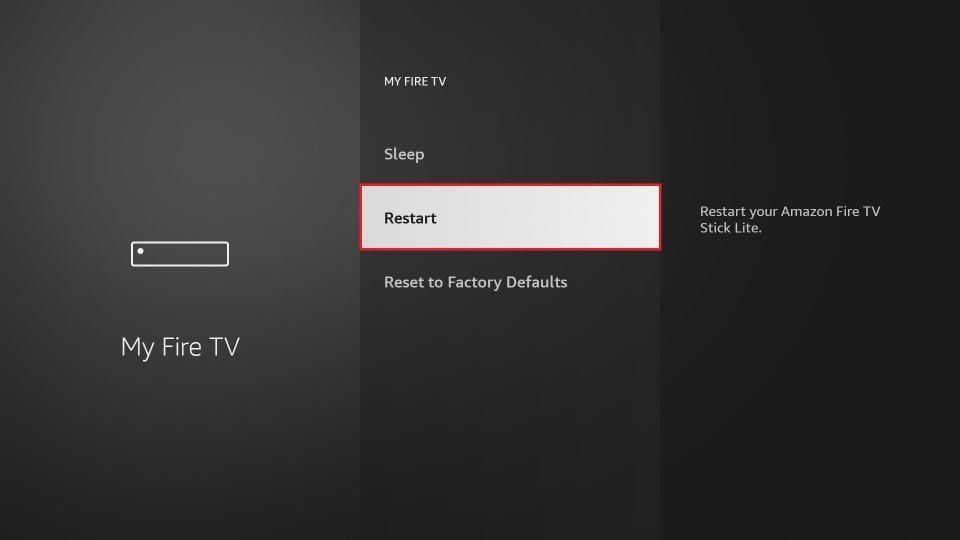
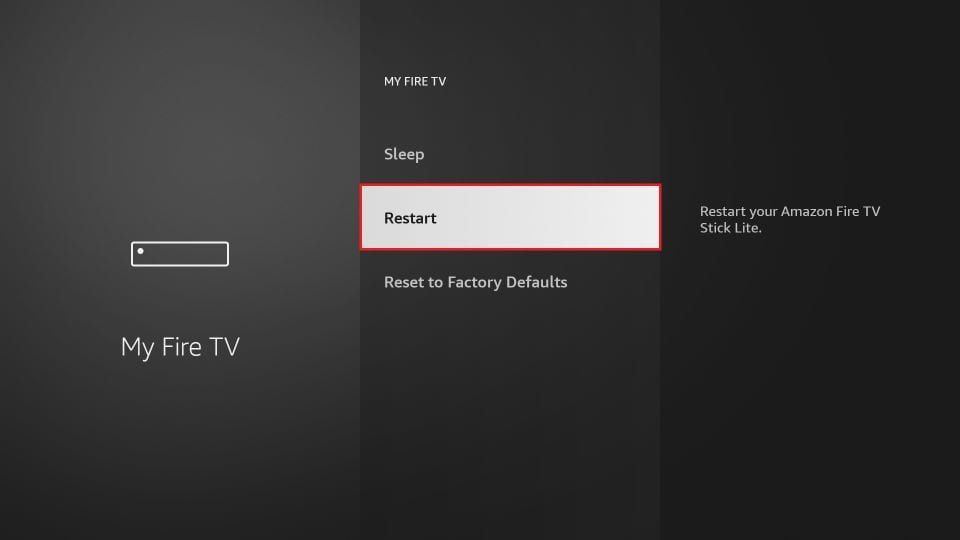
Restarting your FireStick will clear any temporary glitches with the Disney+ app and may resolve the issue.
3) Clear the App Cache
Cache helps apps perform better, but over time it can fill up and actually slow them down, or even cause crashes. Clearing the Disney+ app cache gives it room to work properly without freezing. If you need instructions on how to clear the app cache, please refer to our detailed guide.
4) Update Your FireStick Device
If none of the above solutions work, your FireStick firmware might be outdated. Apps update frequently and require the latest system software to run smoothly. By updating your FireStick, you ensure that the Disney+ app has the resources it needs. Here’s how to update your device:
1. Go to the Home menu and select Settings.
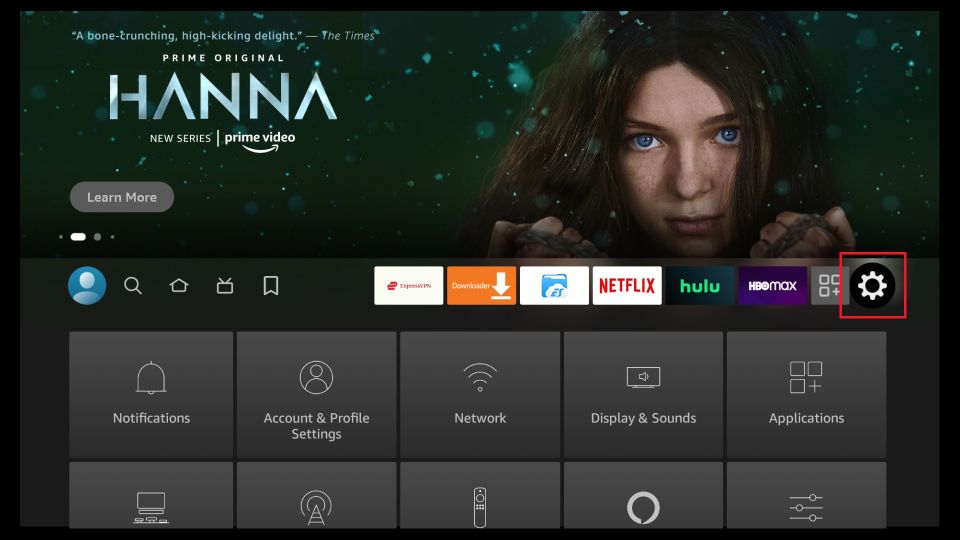

2. Select the My Fire TV app.
3. Go to the About or Update section. If there is an update available, install it.
5) Check if the Disney Plus Server is Down
If the Disney+ servers are down, then clearing caches, restarting your FireStick, or updating it won’t help. All you need to do is be patient until the servers are back online. In the meantime, you can check the server status by doing the following:
1. Open your browser.
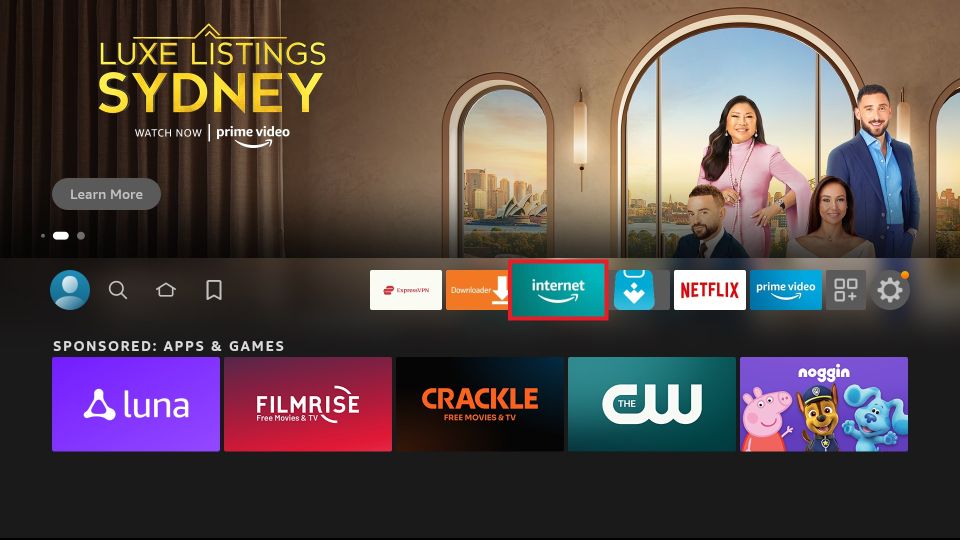

2. Search for Disney plus servers down.
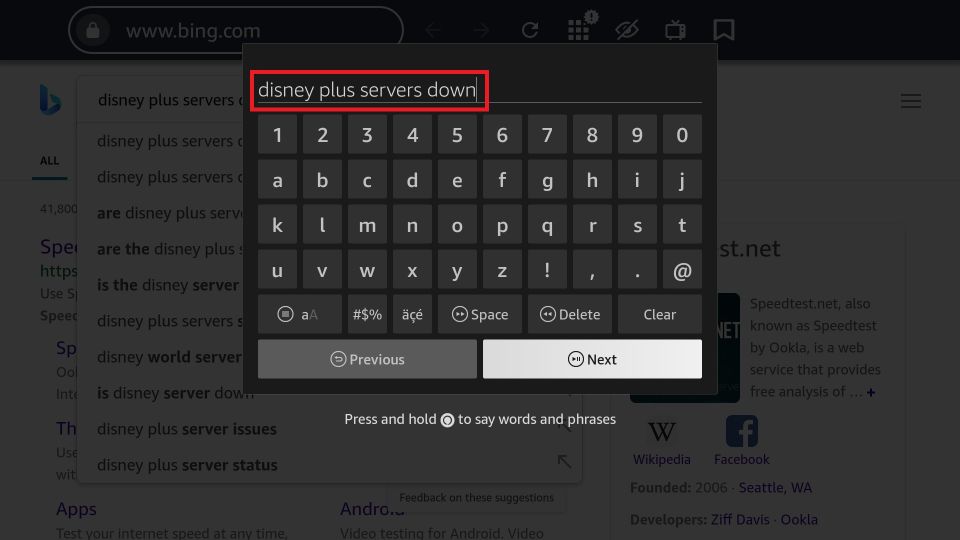
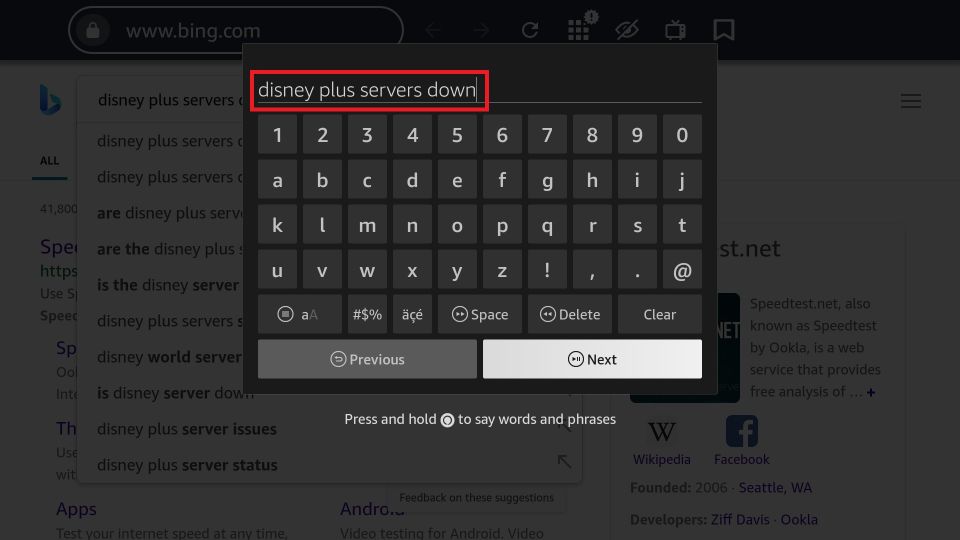
3. Select one of the search results to see if the servers are down.
You can also check the server status on your mobile phone by opening your browser (for example, Google Chrome) and searching for Disney+ servers down.
A poor internet connection can prevent you from enjoying smooth streaming on Disney Plus. If your connection is slow, the app might crash due to high streaming quality demands. To check your network speed on FireStick:
1. Open your FireStick’s browser and go to a speed test website.
2. Type in Speed Run Tests and select any speed test to measure your internet speed.
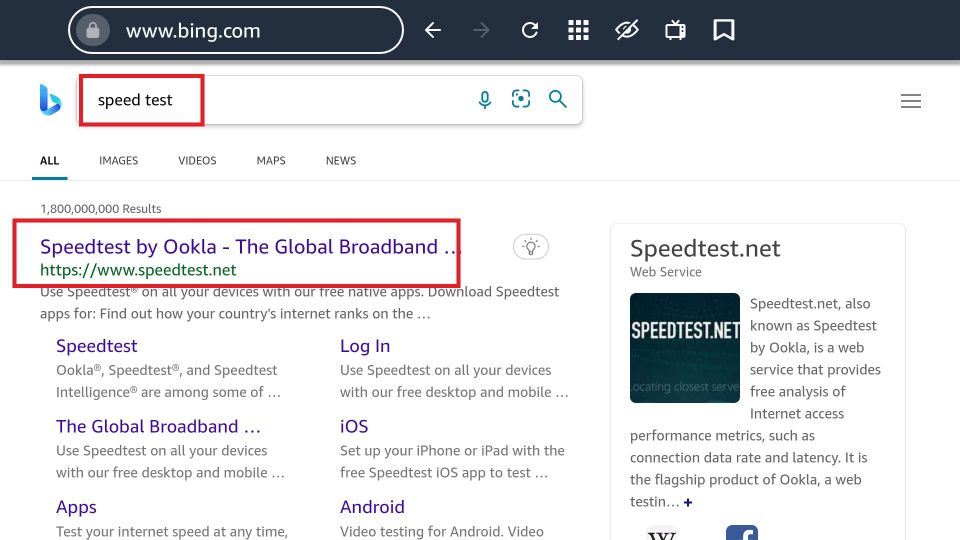
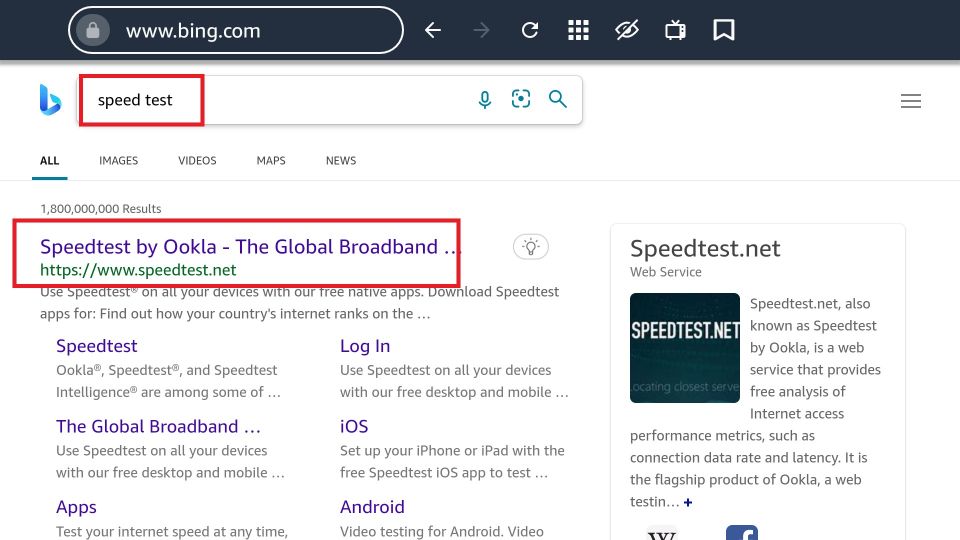
If your internet speed is slow, contact your ISP to upgrade it so that Disney+ can perform optimally on your FireStick.
7) Uninstall and Reinstall the Disney Plus App
If you have tried the above solutions and Disney Plus still isn’t working, try reinstalling the app. Sometimes installation bugs due to faulty security measures can cause the app to crash frequently. Reinstalling removes these temporary bugs, allowing the app to work properly. Follow these steps:
1. Go to the Settings on your Fire TV device.
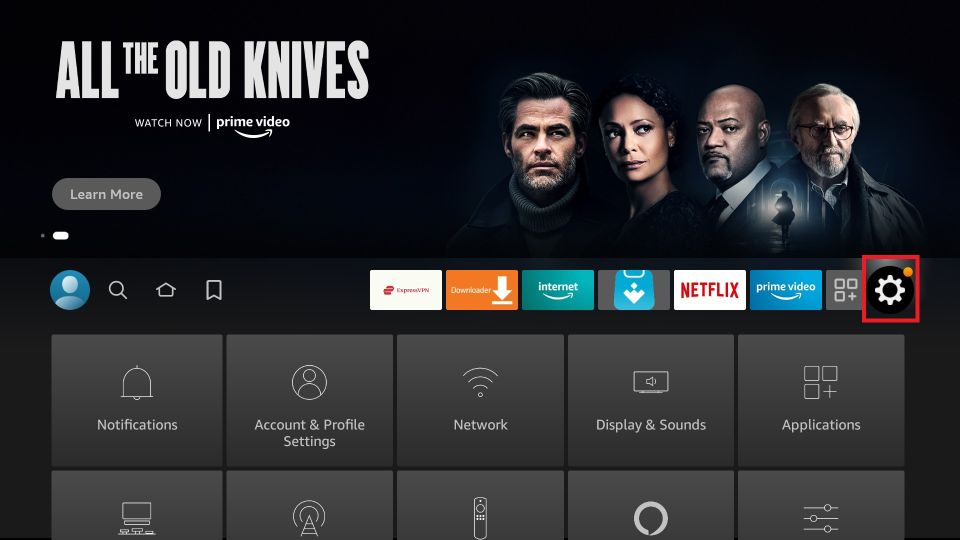

2. Select Applications.
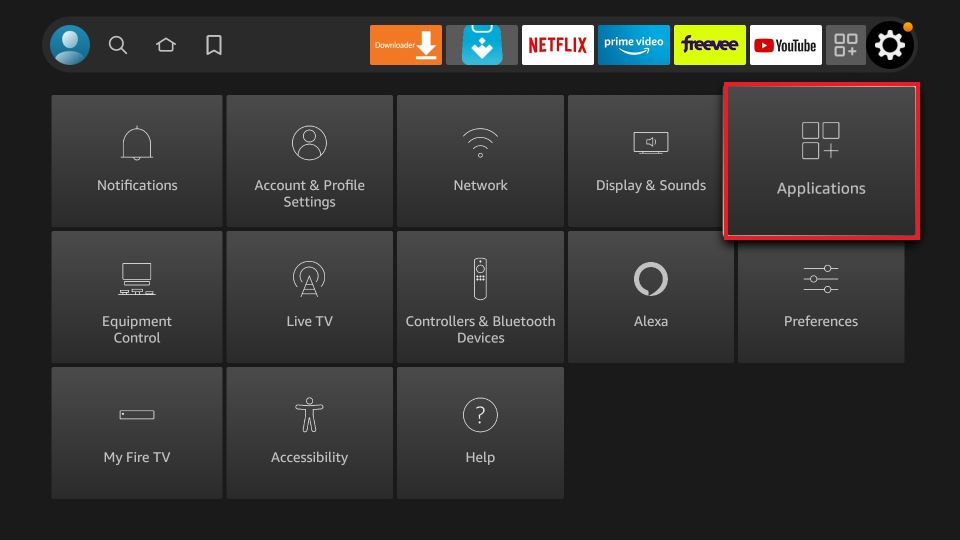
3. Select Manage Installed Applications.
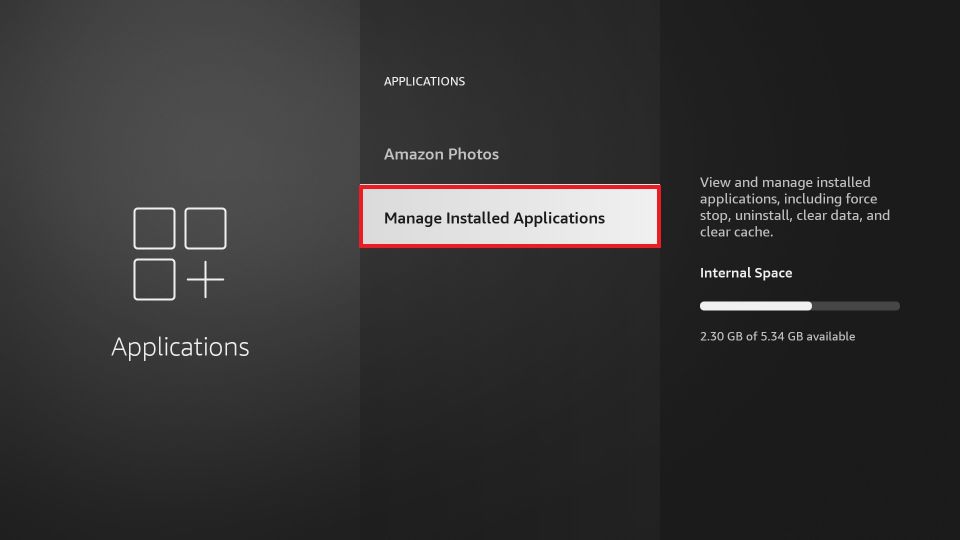

4. Select the Disney+ app and choose Uninstall.
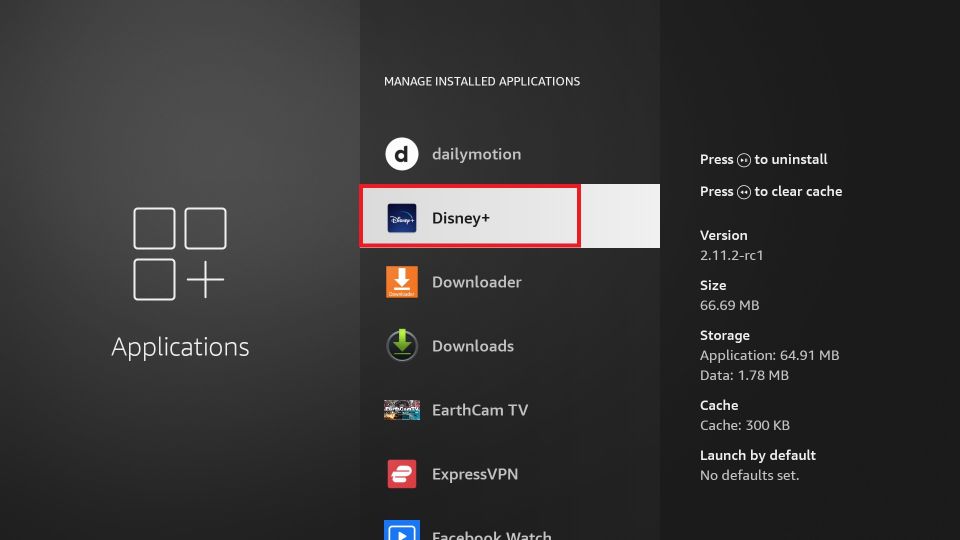
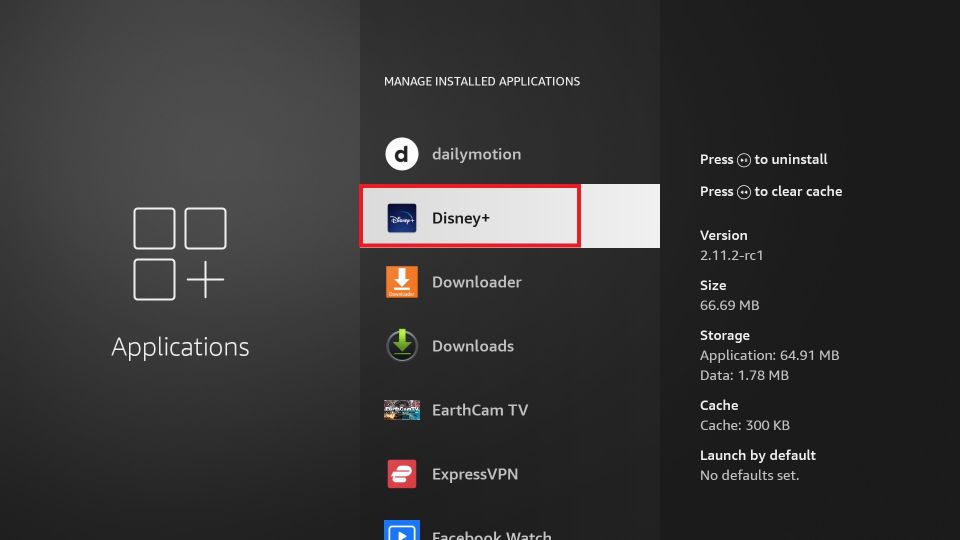
Then, go to the Amazon App Store and reinstall the Disney+ app.
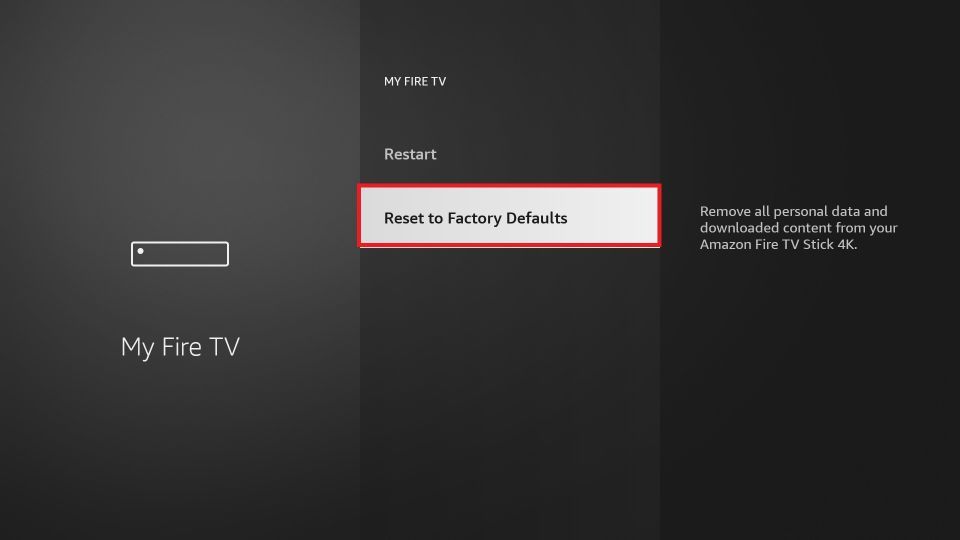
8) Factory Reset Your FireStick
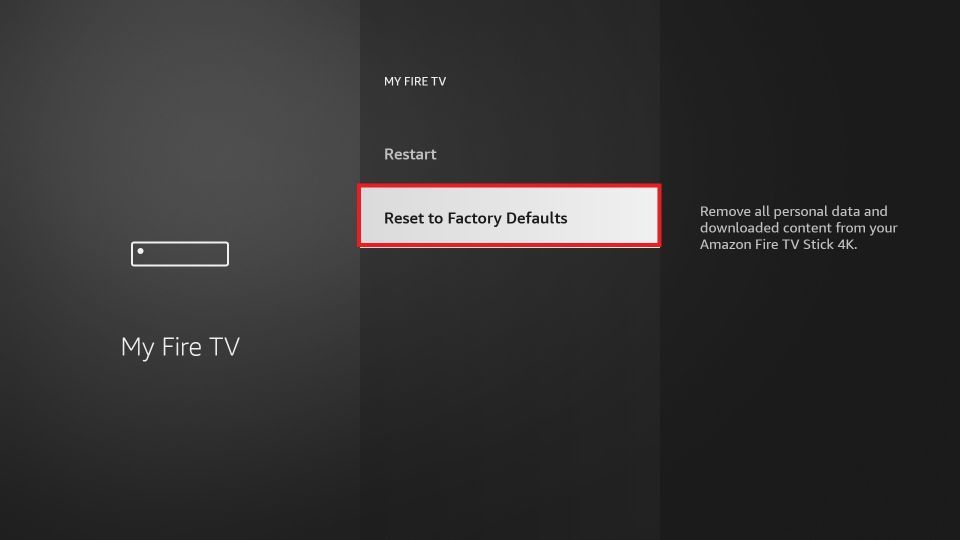
If all 7 solutions fail to fix Disney+ on your FireStick, the final option is to reset your device to factory settings. This will clear out all bugs and unnecessary data that may have accumulated over time. After the reset, reinstall the Disney+ app from the Amazon App Store.
1. Go to the Home menu and then to Settings.
2. Locate the My Fire TV option.
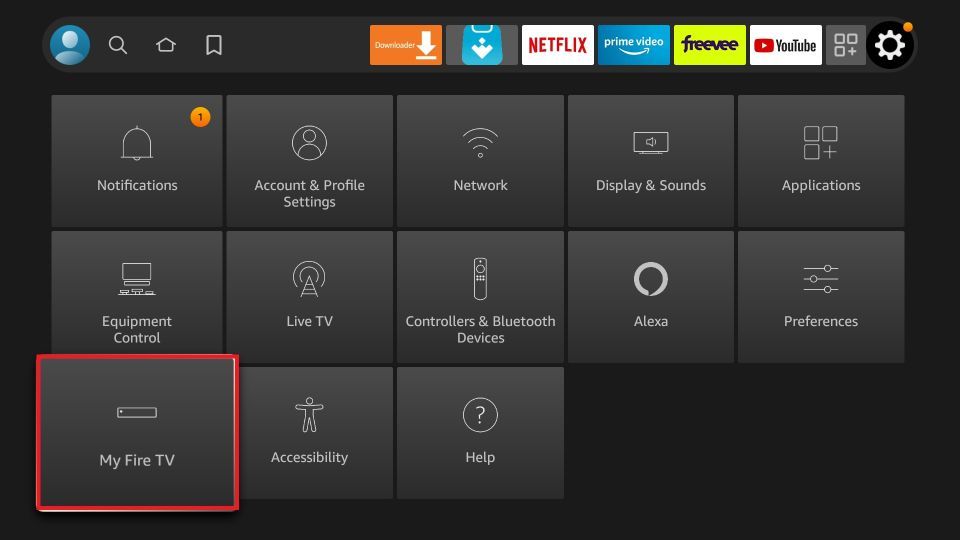

3. Find and click on the Reset to Factory Defaults option.
Wrapping Up
There can be many reasons why Disney+ is not working on your FireStick, such as compatibility issues or incorrect login details. However, by following these 8 simple and super-effective steps, you should be able to get the Disney+ app up and running in no time.
Read our full disclaimer here.